 Merriwood
Put the app on your phone
Add your account to your phone's home screen, and turn on alerts.
Step by step
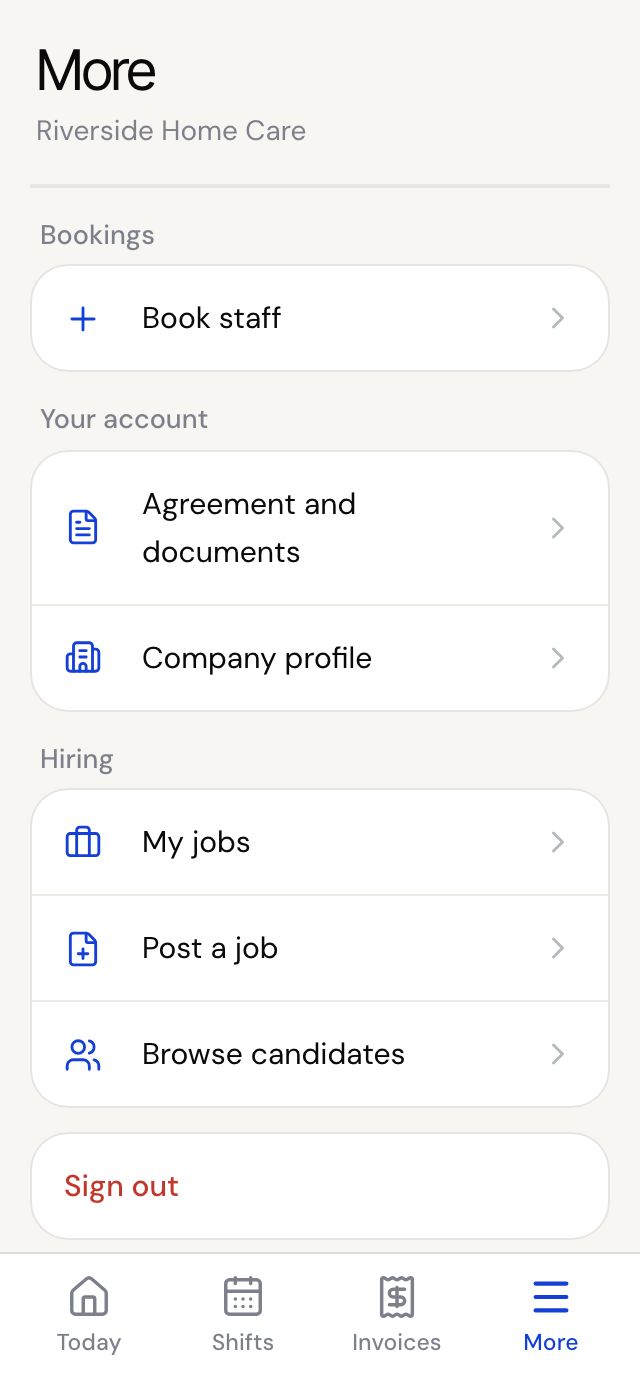
- Sign in on your phone and tap More at the bottom.
- On iPhone, use Safari. Tap Share, the square with an arrow pointing up, then Add to Home Screen, then Add.
- On Android, use Chrome. Tap Install the app if the box shows, or the three dots menu, then Install app or Add to Home screen.
- Open the app from your home screen. It takes you to your Today page.
- On More, tap Turn on beside Phone alerts to be told when an invoice is ready, and when staff arrive if your agency has switched arrival messages on for your visits.
Good to know
- On iPhone, alerts only work once the app is on your home screen.
- Alerts are per phone. Turn them on on each phone you use.