 Merriwood
Cleared for, and a worker's availability
Say which kind of work someone can do, and see or change the hours they're free.
Step by step
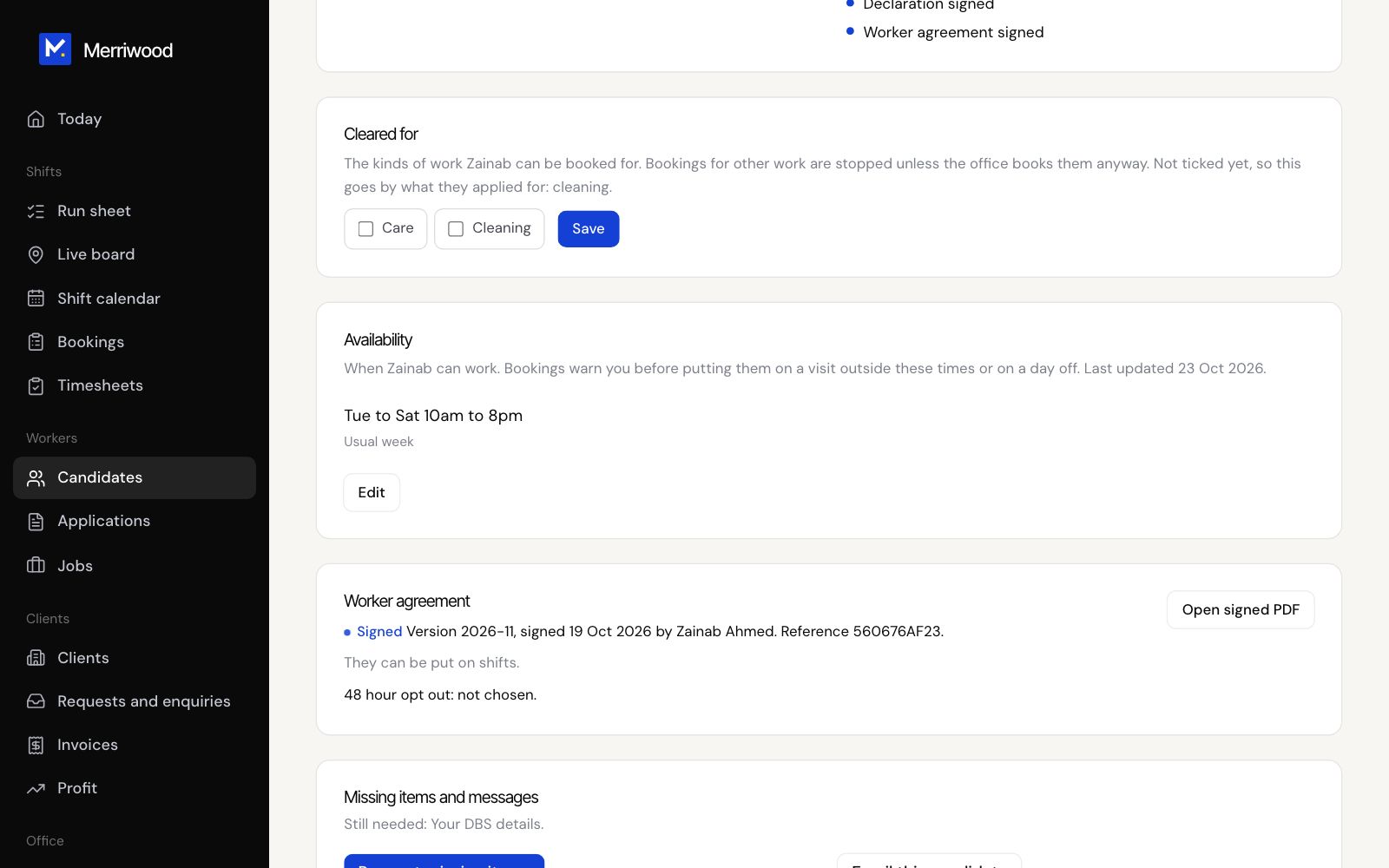
- Open the worker's file and find Cleared for.
- Tick Care, Cleaning or both, then click Save.
- Find Availability to see their usual week and days off.
- Click Edit to change it. Switch days on or off, set the times, and add any days off.
- Tick Let them know by text or by email if you want them to check it, then click Save availability.
Good to know
- If nothing is ticked under Cleared for, the sectors they applied for are used.
- When you add someone to a shift, people not cleared for that kind of work, or not free at that time, are stopped unless you choose Book anyway.
- Workers can change their own availability in the app, and are asked to check it on Sunday evenings.