 Merriwood
Add workers, Who's free and Book anyway
Put people on shifts, see who's free, and override the checks when you need to.
Step by step
- On a booking, choose one or more workers, tick the visit times, and click Add to every open visit at those times.
- Leave Text and email them their shifts ticked so they're told straight away.
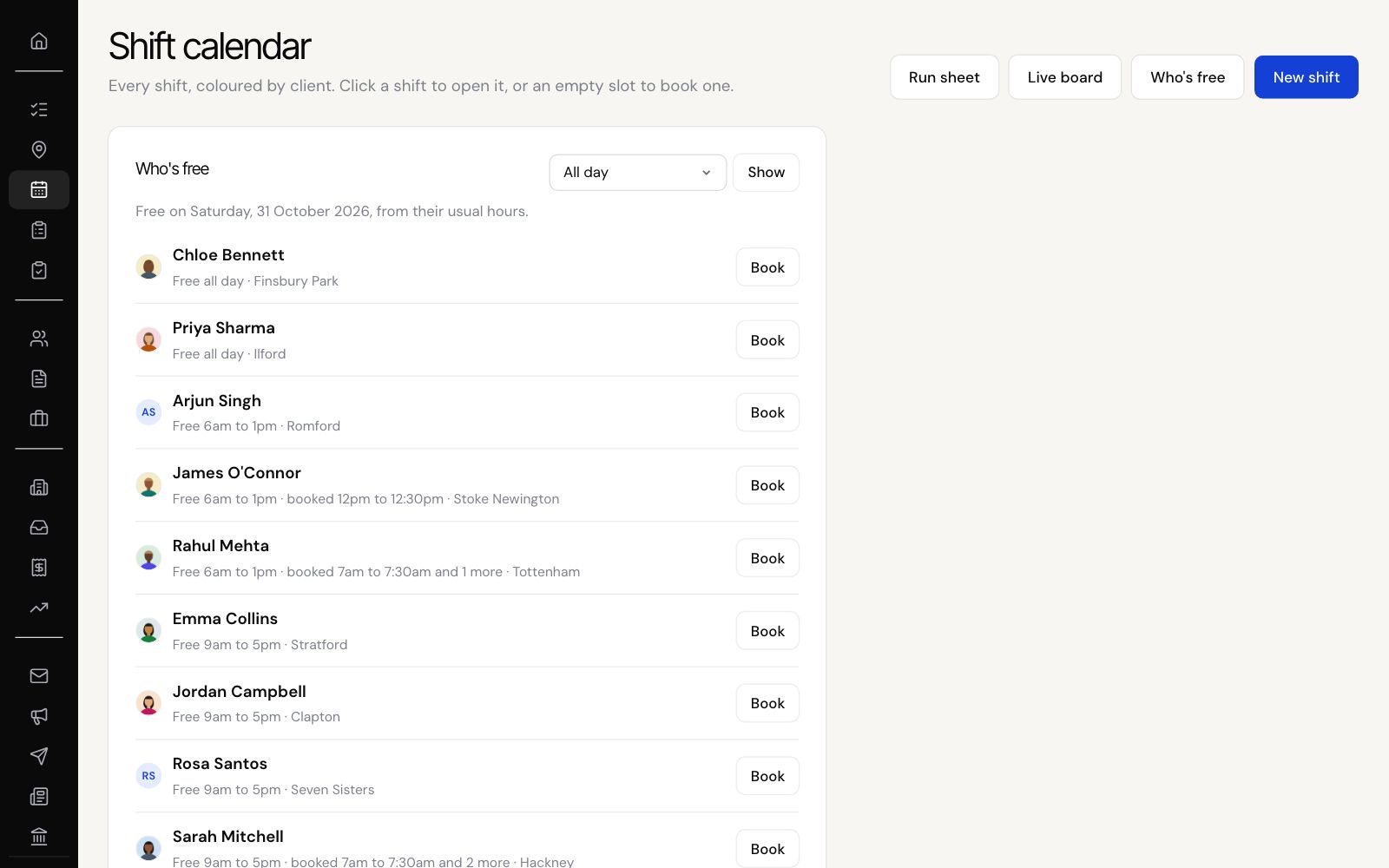
- To fill one shift, open the Shift calendar, switch to Day and click Who's free. Pick a time and click Show.
- Under Needs a worker, click Find someone, then Book beside a free worker.
- If someone isn't free or isn't cleared for the work, you'll see why. Click Book anyway if you're sure.
Good to know
- A worker who hasn't signed a required agreement can't be booked, and there's no override for that.
- Clashes with a worker's other shifts are always skipped.
- When booked, the worker gets an email, a text and a phone alert with the shift and the clock in link.