 Merriwood
Visit notes and photos
Leave a short note about the visit and add photos of the work.
Step by step
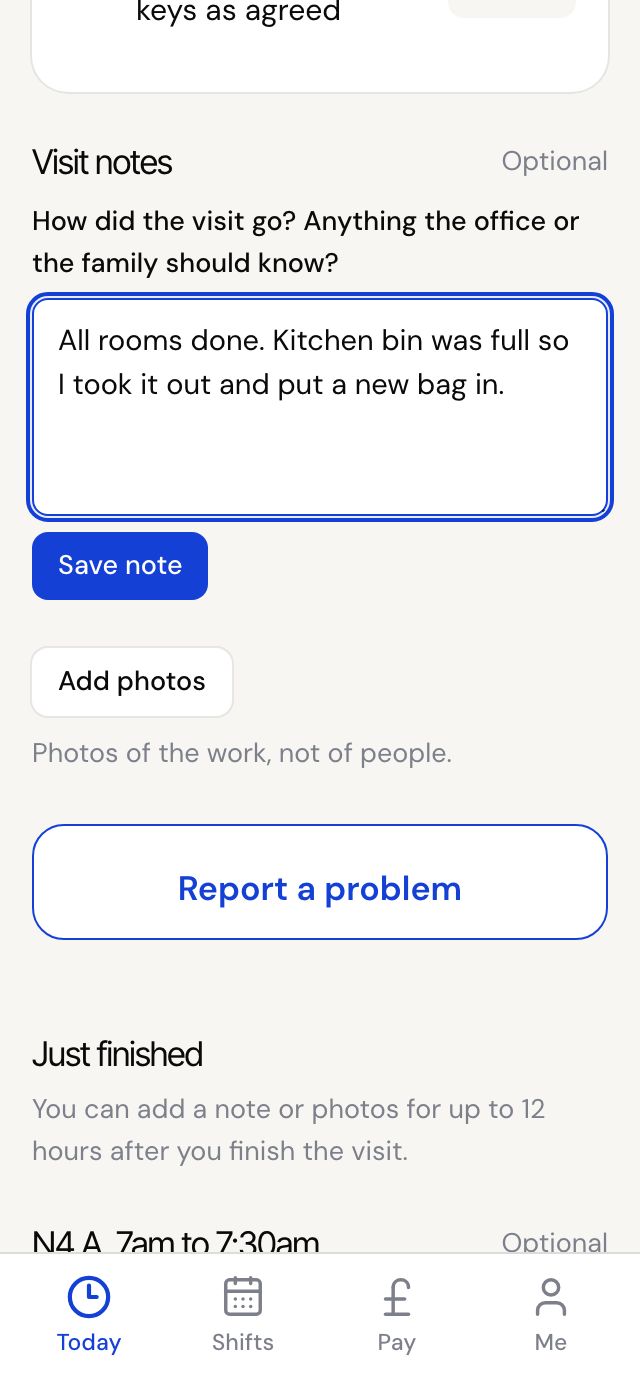
- Once you've clocked in, scroll down to Visit notes.
- Write how the visit went and anything the office or the family should know, then tap Save note.
- Tap Add photos to take a photo or choose one from your phone. You can add up to 6.
- Photos of the work only, never of people.
Good to know
- Notes are optional. You can still add or change them for 12 hours after you finish, under Just finished.
- You can remove a photo you added, with the cross, until you finish the visit.
- The office and the client can see your note and photos.