 Merriwood
Create shifts and tasks
Make a single shift or a repeating one, with the tasks the worker ticks off.
Step by step
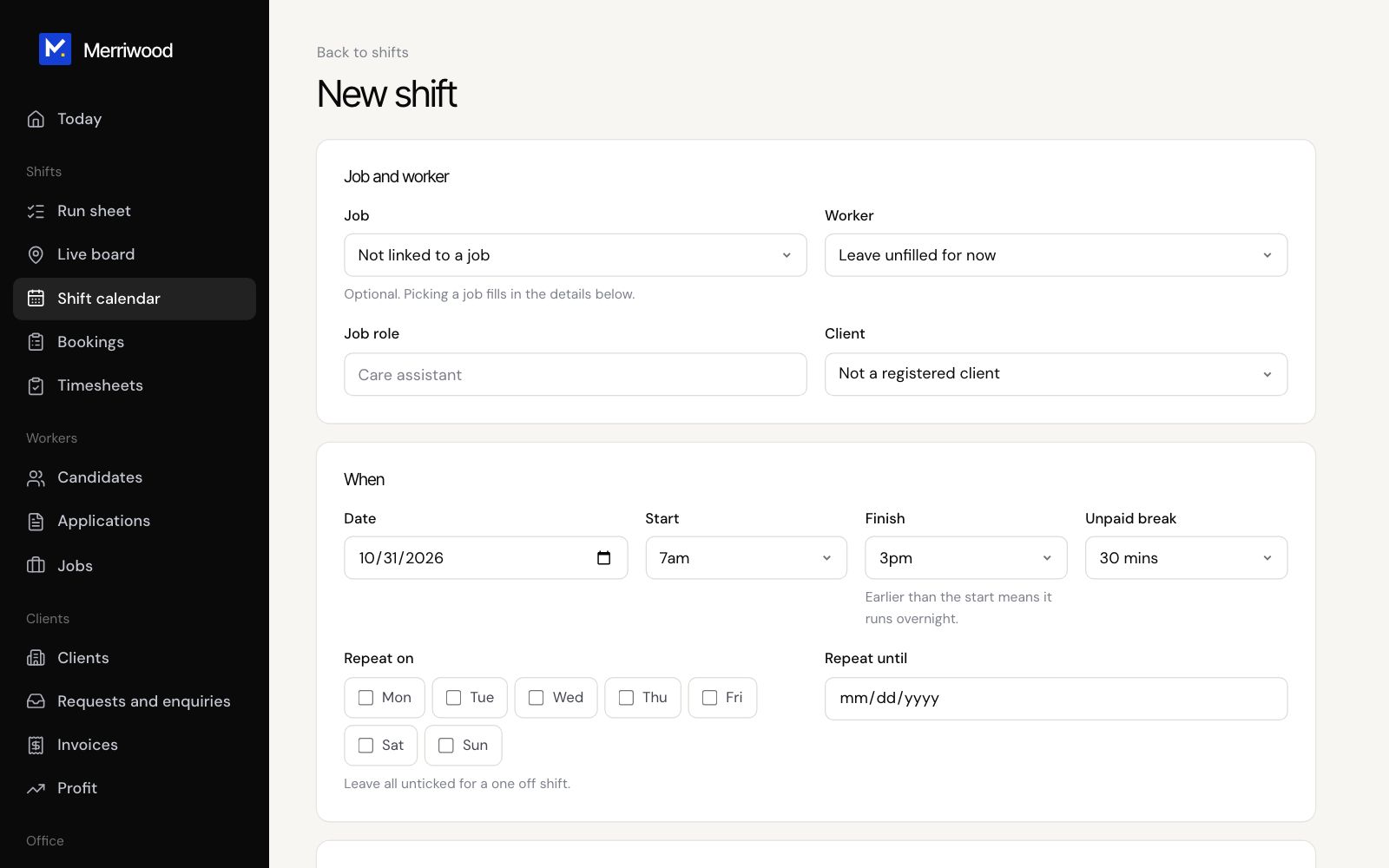
- Most shifts come from a booking. For a one off, click New shift on Today or the Shift calendar.
- Under Job and worker, pick a job to fill in the details, or leave it. Choose a worker, or Leave unfilled for now.
- Under When, set the date, start, finish and any unpaid break. To repeat, tick the days under Repeat on and set Repeat until.
- Under Where, add the site, the Code name workers see, and the postcode, which sets the clock in zone.
- Under Client alerts, add the contact. Tick Email and text this contact when the worker clocks in if they want arrival alerts.
- Under Pay and notes, set the rates, notes, how to get in, and the Task checklist.
- Click Book shift.
Good to know
- Tasks for booked shifts come from the client's booking. You can edit the checklist on the booking or on a single shift.
- Shifts made from a booking have arrival alerts off, so clients with several visits a day aren't flooded. To switch them on, tick Text and email the client when each carer arrives on the booking. Shifts that haven't started change too.
- If a client replies STOP to an arrival text, their texts stop and the booking's tick goes off. You're emailed. If they reply START, it comes back on.
- Workers see the code name and area only, until the day.