 Merriwood
A new booking: checks, CQC and the agreement
When a client books, check the details, send the agreement, then create the shifts.
Step by step
- New bookings show on Today and under Bookings as New, needs shifts. You're emailed too. Click to open it.
- Check the booking details, the code name staff will see, and the task checklist.
- Set the rates first. See the rates topic.
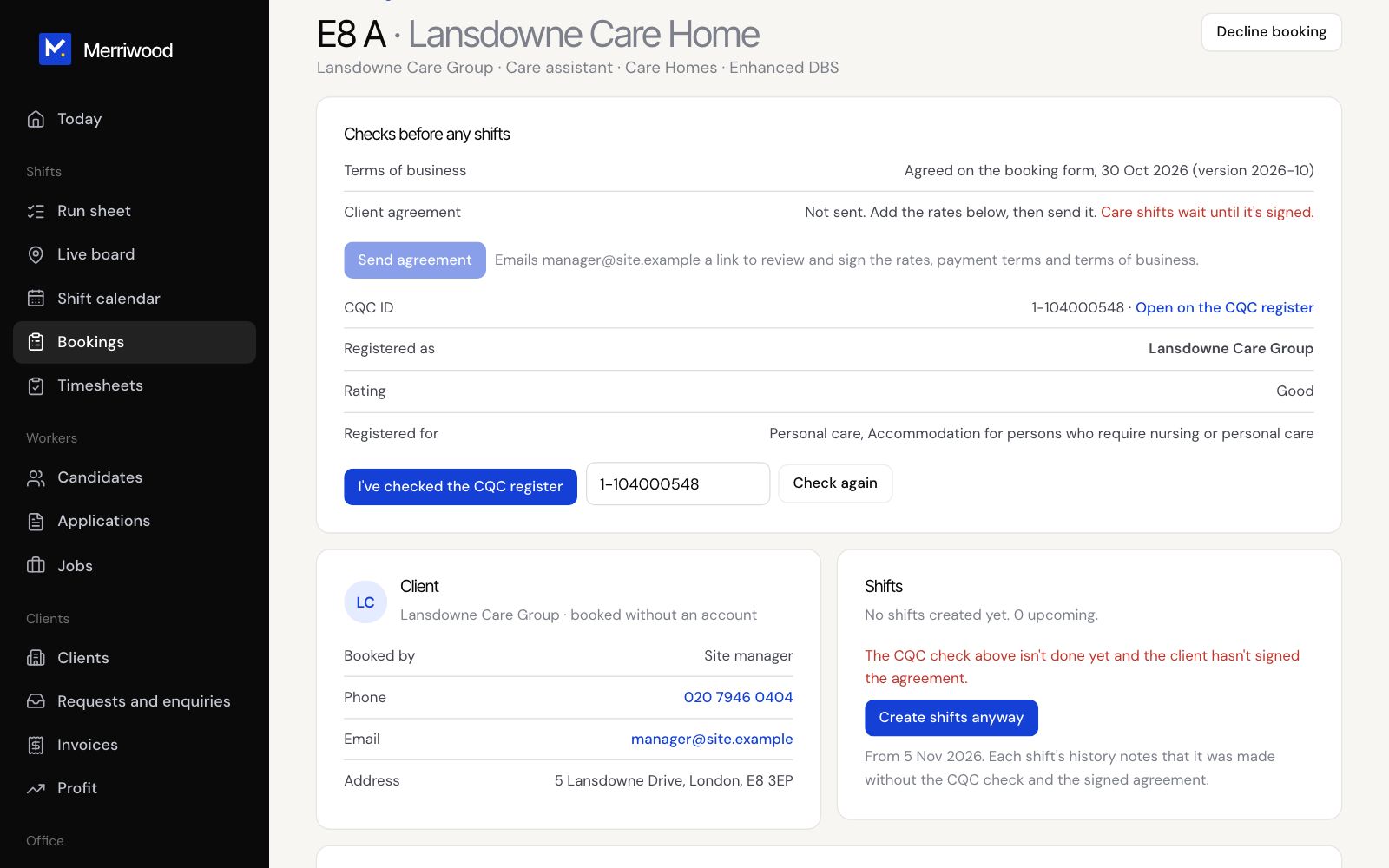
- Under Checks before any shifts, click Send agreement. The client is emailed a link to review and sign. It works for 30 days.
- For care work, check the CQC panel. Click Open on the CQC register, then I've checked the CQC register.
- Under Shifts, click Create the first 4 weeks of shifts.
- Then add workers. See Add workers to shifts.
Good to know
- Care shifts can't be created until CQC is checked and, for newer care bookings, the agreement is signed. Cleaning only shows a warning.
- If you need to go ahead anyway, Create shifts anyway appears and the override is noted in the history.
- Changing the rates makes a signed agreement out of date, so send it again.
- Add a booking opens the booking form if a client phones you.