 Merriwood
Invoices and pay statements
Make invoices from approved visits, check them, send them and mark them paid.
Step by step
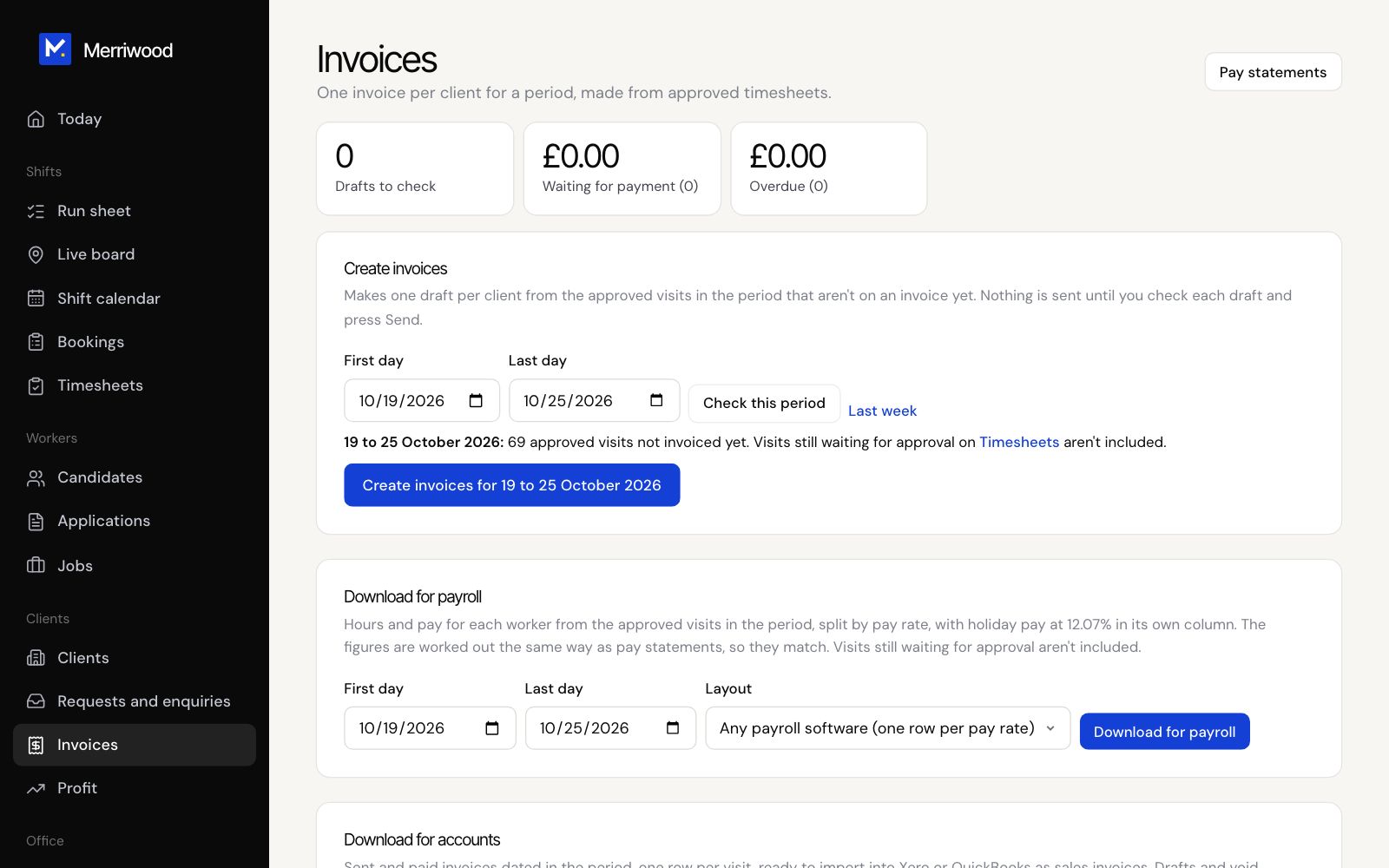
- Open Invoices. Under Create invoices, pick the period, or click Last week, then click Create invoices.
- One draft is made per client. Nothing is sent yet.
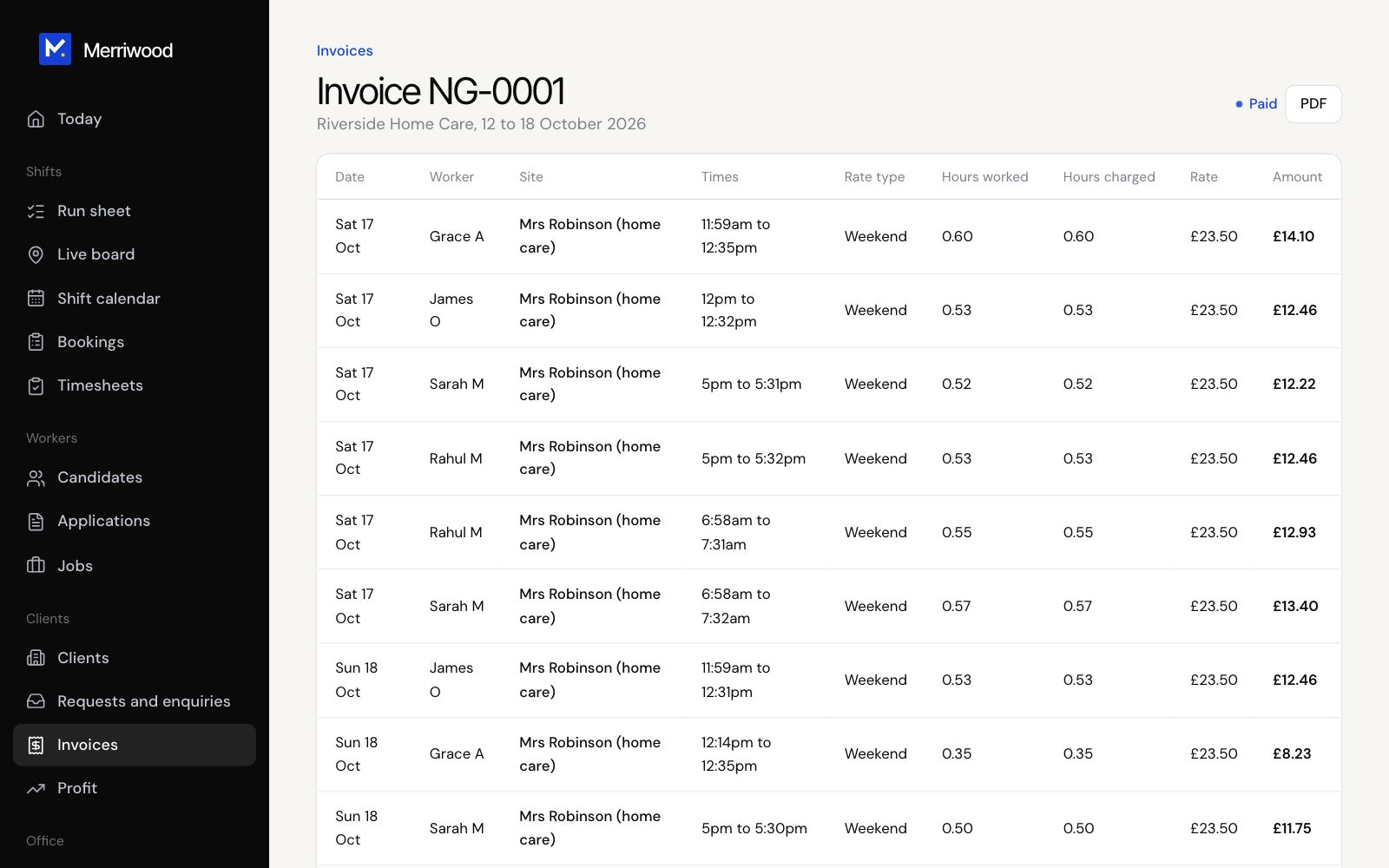
- Open each draft. Check and send lists anything missing, like a rate or an email address. Click Preview PDF to see it.
- Click Send invoice. It gets its number and the client is emailed the PDF.
- When they pay, enter the Date paid and click Mark as paid.
- For workers, click Pay statements, make them for the period, and click Send on each.
Good to know
- Void this invoice keeps its number and frees its visits. The client isn't emailed, so tell them.
- Pay statements only appear if switched on in Agency details. A statement can't be sent while a pay rate is missing.