 Merriwood
Put the app on your iPhone
Add the app to your home screen so it opens full screen, straight to your shifts.
Step by step
- Open your agency's website in Safari and sign in. On iPhone this only works from Safari, not Chrome.
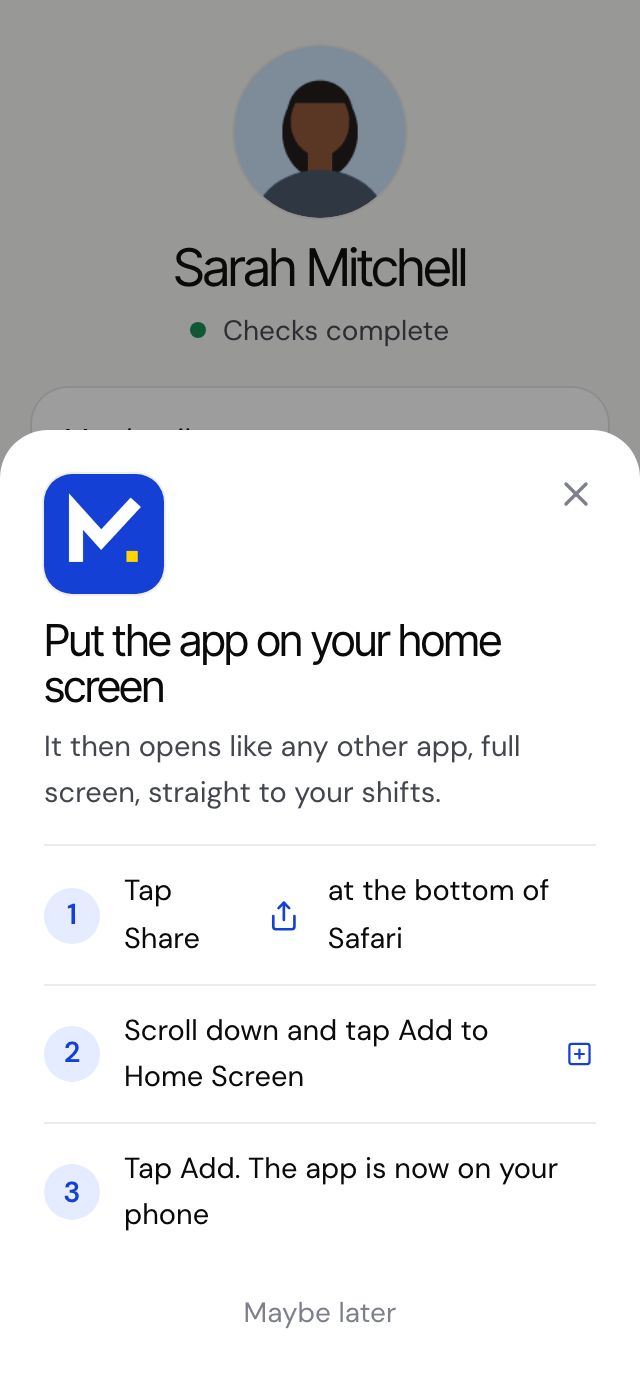
- A box called Put the app on your home screen pops up after a moment. If you closed it, tap Me, then Add the app to your home screen.
- Tap Share, the square with an arrow pointing up, at the bottom of Safari.
- Scroll down and tap Add to Home Screen.
- Tap Add. The app is now on your home screen. Open it from there from now on.
Good to know
- Phone alerts on iPhone only work once the app is on your home screen. After adding it, open it, tap Me and turn on Phone alerts.
- Tap Maybe later if you want to do it another time. The box won't keep popping up.